What Is Image to Prompt?
More Than Describing a Picture
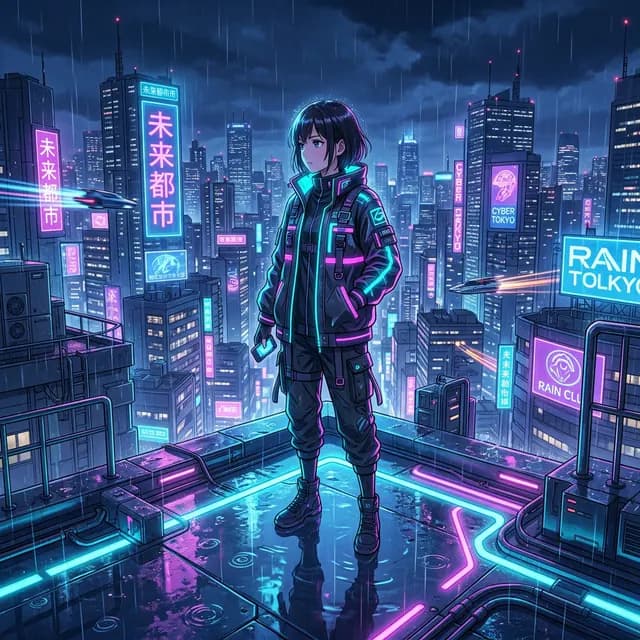
Image to prompt means turning a picture into written instructions for an AI image model. You upload an image; the tool tries to identify the subject, scene, composition, lighting, color palette, and visual style, then turns those observations into a prompt you can edit and reuse.
That sounds close to image captioning, but a useful prompt has a different job. It should not stop at “a woman in a city at night.” It should notice how far the camera is from her, where the light comes from, what colors control the frame, and whether the image feels photographic, illustrated, or rendered.
Image description and image prompt are not the same thing
A description helps a person understand the picture. A prompt gives a model enough visual direction to build a related one.
Description: A girl stands on a city rooftop in the rain.
Usable prompt: A short-haired woman standing alone on a rain-soaked rooftop, back to camera, dense cyberpunk skyline in the distance, cyan and magenta neon reflected in puddles, medium-wide composition, low camera angle, cinematic side light, detailed anime illustration, fine rain visible in the air.
The second version is not better because it is longer. It is better because it names the visual decisions that shape the result.
What image-to-prompt tools are good for
- Studying a reference: understand why an image works instead of guessing at style words.
- Transferring a visual direction: keep the lighting, framing, or palette while changing the subject.
- Finding missing vocabulary: put names to camera distance, light quality, material, and depth.
- Preparing a model-specific draft: extract the visual facts first, then adapt them for Midjourney, Flux, Stable Diffusion, or GPT Image.
What it cannot recover
An image-to-prompt tool cannot retrieve the exact original prompt. Many different prompts can lead to similar pictures, and the finished file does not reveal the creator's seed, hidden parameters, or editing history.
It may also miss intent. A model can see a bottle on stone, but it does not know whether the art director cared most about the label, the reflection, or the empty space reserved for ad copy. Treat the extracted prompt as a draft, not forensic evidence.
How to tell whether an extracted prompt is useful
- Check the subject and action for obvious mistakes.
- Compare the camera distance and point of view.
- Look for the dominant light, colors, and background treatment.
- Remove empty phrases such as “stunning,” “masterpiece,” or “ultra beautiful.”
- Delete invented details that are not visible in the reference.
A practical way to use the result
Run the image once, then edit with a purpose. Keep the details you want to preserve, remove filler, and move the thing you want to change near the start of the prompt.
Suppose the tool returns “a red cabin in a misty forest at sunrise,” but you only care about the light. Keep “misty forest, low warm sunlight filtering through the canopy,” replace the cabin with your subject, and test that smaller prompt first.
Where to go next
Start with a clear reference image and make one conversion. Then follow our step-by-step image-to-prompt guide to clean up the draft for your target model. If you prefer to learn by comparing outputs, open the image-to-prompt examples.
Related articles
Keep reading with practical prompt guides, model comparisons, and workflow examples.
How to Convert an Image to a Prompt: Step-by-Step Guide
A practical workflow for extracting a prompt, correcting visual details, and adapting the result to the image model you use.
Image to Prompt Examples: 3 Worked Reference Images
See how portrait, forest, and cartoon references become clearer, reusable AI image prompts through practical worked examples.
How to Prompt Image Generators: A Master Guide
Learn the essential techniques and formulas for how to prompt image generators like Midjourney, DALL-E 3, and Stable Diffusion to get high-quality AI art.
The image-to-prompt service has ended
The generator is offline. Visit the homepage for the full service update.